
5.9 KiB
title, source, author, published, created, description, tags
| title | source | author | published | created | description | tags | ||
|---|---|---|---|---|---|---|---|---|
| 5 IntelliJ IDE Features That Will Set You Apart as a Java Programmer | https://medium.com/@gumparthypk/5-intellij-ide-features-that-will-set-you-apart-as-a-java-programmer-7ea88d79d437 |
|
2024-10-19 | 2024-10-29 | Welcome to the playzone for developers: the IDE. For software engineers, this space is a creative hub where we bring life to ideas by writing code — almost like a second home. 🏠 If the answer is… |
|
[

Welcome to the playzone for developers: the IDE. For software engineers, this space is a creative hub where we bring life to ideas by writing code — almost like a second home. 🏠
IDE: Integrated Development Environment that provides a platform runtime for software development

IntelliJ
Source: https://www.jetbrains.com/idea/
When was the last time you found yourself debugging or refactoring code?
If the answer is recent, then I’m right there with you. Whenever I review my old code, I often ask myself, “What was I thinking then?” 😀
Naturally after review, I tend to refactor it because progress — not perfection — matters to me.
While performing the refactoring tasks, I discovered multiple in-house features that I didn’t know already existed, which if applied could have helped me become more productive.
In this article, I’m excited to share these standout features of IntelliJ that can elevate your skills and make you a more proficient software engineer.
Without further ado, let’s dive right in!
1. Live Templates
Live templates are a feature that lets you easily insert common code constructs such as loops, classes, conditions, and print statements.
For instance, in Spring applications, we often need to configure databases using property files, which can make it challenging to navigate and inject these parameters. With live templates, you can create abbreviations to quickly insert these parameters directly into your code.
To configure Live Templates Navigate to -> Settings -> Editor -> Live Templates
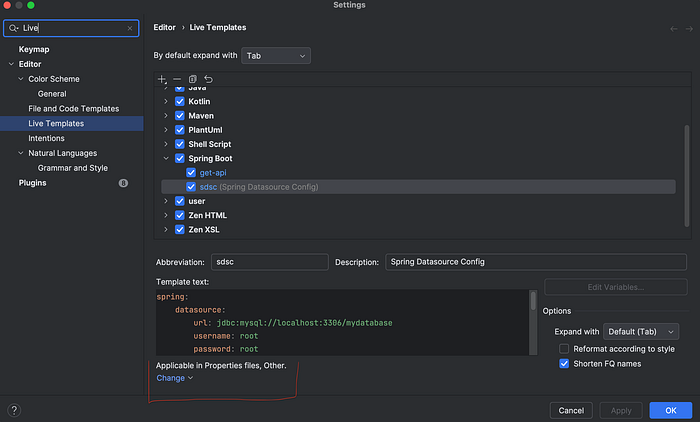
Live Templates
Now we can use this abbreviation anywhere in applicable paths in this case i.e Property and Other files

Output
2. File Templates
File templates serve as default specifications for new files created through the File | New window in IntelliJ.
The IDE offers several template variables that can automatically replace content each time a file is generated. Here are a few that I found particularly useful:
- DATE
- PACKAGE_NAME
- USER
- PROJECT_NAME
- FILE_NAME
One valuable use case for this feature is the automatic generation of comments that include the author’s name and creation timestamp, a practice commonly found in well-maintained open-source codebases.
To configure Live Templates Navigate to -> Settings -> Editor -> File and Code Templates
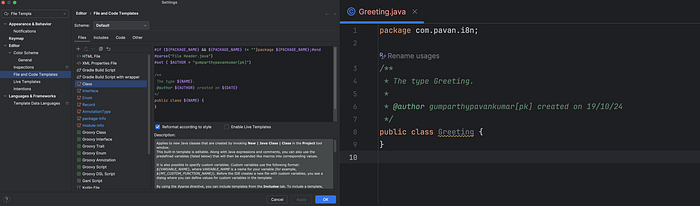
File And Code Templates
3. Structural Search & Replace
This feature lets you search for a particular code pattern in your code. It is essentially a script that you write to determine the search criteria.
One use case where I have observed this feature is very helpful is when searching for patterns/ dependency hierarchies:
For Instance, say we want to replace all occurrences of For-Next loop with For-Each
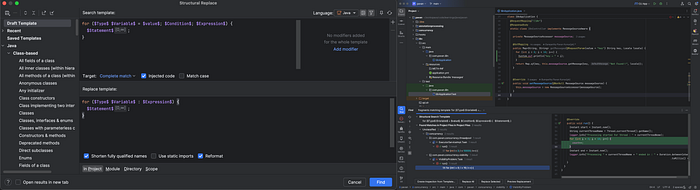
Structural Search & Replace
Just clicking replace will update the code in every matching code pattern.
4. Sort Lines
This feature I find particularly helpful when working with property and env files
It is often possible that your property files become cumbersome with parameters under the same hierarchy not properly grouped, leading to a frustrating experience.
This feature allows you to do the same thing by simply sorting the data according to Lexicographical order
Setting available in Edit -> Sort Lines
5. Git Tool Box
This is particularly helpful if you are someone who manages the VCS workflow using the IntelliJ interface
This lets you configure checks, and inspections to run before committing without needing to configure git-hooks.
To Configure Navigate to Settings -> Version Control
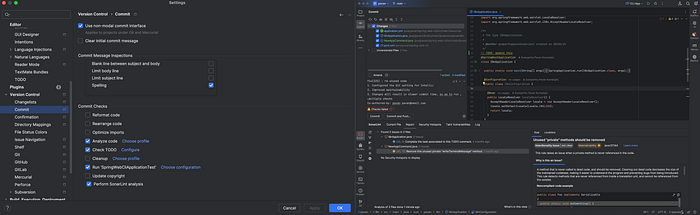
Version Control Setting
Bonus
This will be one of those important features that will make your day much more productive in debugging
Analyze Stack Trace/ Thread Dump
Often you are interested in analyzing exceptions received in production for some flow. Unlike the exceptions, while you get in debug mode, these exceptions do not have links to help you navigate the corresponding locations in the source code.
With IntelliJ, you can copy an exception trace into Stack Trace Analyser then explore information, and navigate to corresponding sections in your application code.
This feature is completely free in Intellij
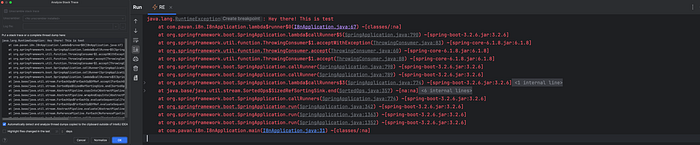
Analyse Stack Trace
References:
If you find any other features that help in day-to-day, please don’t forget to share them in the comments 🙂
Thank you for reading until the end. If you found this blog insightful
Give this blog a few claps 👏 to show your love!
And hit that follow button 👉 and consider subscribing to stay updated on my latest posts.
Happy Learning! 😊