
158 lines
7.5 KiB
Markdown
158 lines
7.5 KiB
Markdown
---
|
||
title: A Command Line Email Client to Send Mails from Terminal
|
||
source: https://www.tecmint.com/send-mail-from-command-line-using-mutt-command/
|
||
---
|
||
|
||
[A Command Line Email Client to Send Mails from Terminal](https://www.tecmint.com/send-mail-from-command-line-using-mutt-command/)
|
||
As a System admin, sometimes we need to send mails to users or someone else from the server and for that we used to go with a web based interface to send email, is it really that handy ? Absolutely No.
|
||
|
||

|
||
|
||
Mutt Command Line Email Client
|
||
|
||
Here in this tutorial, we’ll be using the **mutt** (a terminal email client) command to send email from command line interlace.
|
||
|
||
##### What is Mutt?
|
||
|
||
**Mutt** is a command line based **Email** client. It’s a very useful and powerful tool to send and read mails from command line in **Unix** based systems. Mutt also supports **POP** and **IMAP** protocols for receiving mails. It opens with a coloured interface to send Email which makes it user friendly to send emails from command line.
|
||
|
||
##### Mutt Features
|
||
|
||
Some other important features of **Mutt** is as follows:
|
||
|
||
1. Its very Easy to install and configure.
|
||
2. Allows us to send emails with **attachments** from the command line.
|
||
3. It also has the features to add **BCC** (**Blind carbon copy**) and **CC** (**Carbon copy**) while sending mails.
|
||
4. It allows message **threading**.
|
||
5. It provides us the facility of mailing **lists**.
|
||
6. It also support so many mailbox formats like **maildir**, **mbox**, **MH** and **MMDF**.
|
||
7. Supports at least **20** languages.
|
||
8. It also support **DSN** (**Delivery Status Notification**).
|
||
|
||
### How to Install Mutt in Linux
|
||
|
||
We can install **Mutt Client** in our Linux box very easily with any package installers as shown.
|
||
|
||
\# apt-get install mutt (For Debian / Ubuntu based system)
|
||
|
||
\# yum install mutt (For RHEL / CentOS / Fedora based system)
|
||
|
||
##### Configuration files
|
||
|
||
Configuration files of **Mutt Email** client.
|
||
|
||
1. **Main Configuration file**: To make changes globally for all users For mutt, you can make changes in its mail configuration file “**/etc/Muttrc**“.
|
||
2. **User Configuration file of Mutt** : If you want to set some specific configuration for a particular user for Mutt, you can configure those settings in **~/.muttrc** or **~/.mutt/muttrc** files.
|
||
|
||
##### Basic Syntax of mutt command
|
||
|
||
mutt options recipient
|
||
|
||
##### Read Emails with Mutt
|
||
|
||
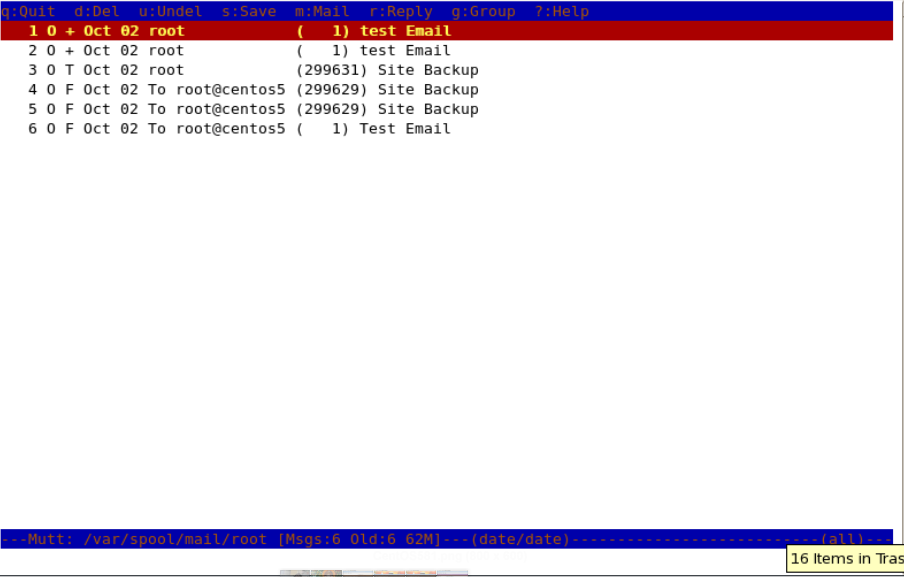
To read emails of the user with you are currently logged in, you just need to run “**mutt**” on the terminal, it will load the current user’s mailbox.
|
||
|
||
\[root@tecmint ~\]# mutt
|
||
|
||
|
||
|
||
Read Mail from Terminal
|
||
|
||
To read the emails of a specific user, you need to specify which mail file to read. For example, You (as **root**) wants to read mails of user “**John**“, you need to specify his mail file with “**-f”** option with mutt command.
|
||
|
||
\[root@tecmint ~\]# mutt -f /var/spool/mail/john
|
||
|
||
You may also use “**-R**” option to open a mailbox in **read-only** mode.
|
||
|
||
##### Send an email with mutt command
|
||
|
||
In this example, following command will send a test **Email** to **john@tecmint.com**. The “**-s**” option is used to specify **Subject** of the mail.
|
||
|
||
\[root@tecmint ~\]# mutt -s "Test Email" john@tecmint.com
|
||
|
||
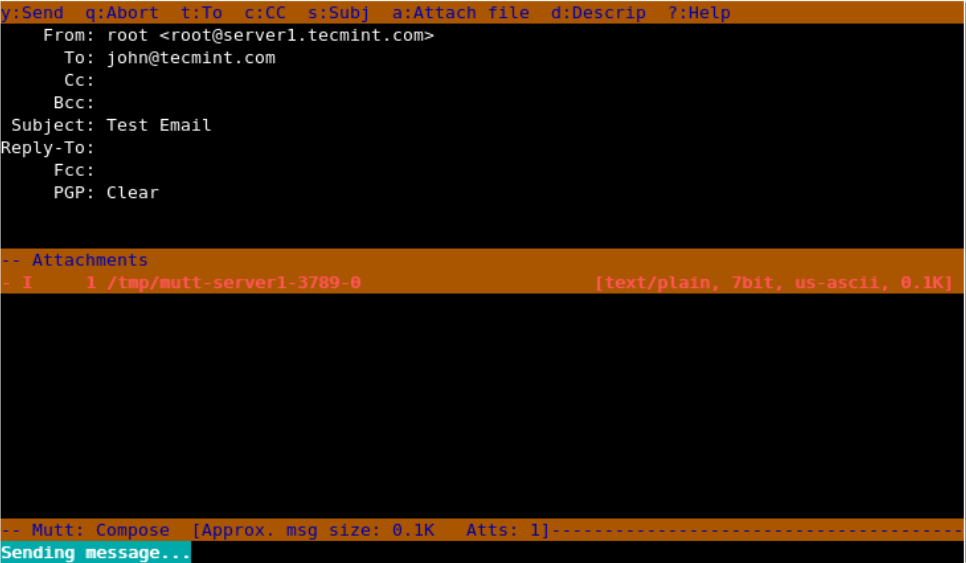
When you enter the above command in the terminal, it opens up with an interface and confirms the recipient address and subject of the mail and opens up the interface, here you can make changes to recipient mail address.
|
||
|
||
1. Change recipient email address pressing **t**.
|
||
2. Change Cc address with **c**.
|
||
3. Attach files as attachments with **a**.
|
||
4. Quit from the interface with **q**.
|
||
5. Send that email by pressing **y.**
|
||
|
||
**Note**: When you press “**y**” it shows the status below that mutt is sending mail.
|
||
|
||
|
||
|
||
Send Mail from Terminal
|
||
|
||
##### Add Carbon copy(Cc) and Blind Carbon copy(Bcc)
|
||
|
||
We can add **Cc** and **Bcc** with mutt command to our email with “**-c**” and “**-b**” option.
|
||
|
||
\[root@tecmint ~\]# mutt -s "Subject of mail" -c <email add for CC> -b <email-add for BCC> mail address of recipient
|
||
|
||
\[root@tecmint ~\]# mutt -s “Test Email” -c tecmint.com@gmail.com -b root@server1.tecmint.com john@server1.tecmint.com
|
||
|
||
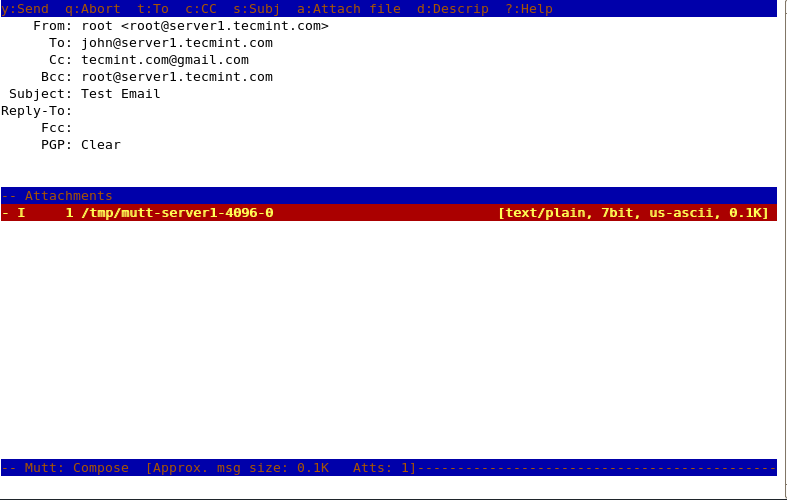
Here in this example, **root** is sending email to **john@server1.tecmint.com** and putting **tecmint.com@gmail.com** as **Cc** address and **root@server1.tecmint.com** as **Bcc**.
|
||
|
||
|
||
|
||
Send Mail as CC or BCC in Terminal
|
||
|
||
##### Send Emails with Attachments
|
||
|
||
We can send email from command line with **attachments** by using “**-a**” option with mutt command.
|
||
|
||
\[root@tecmint ~\]# mutt -s "Subject of Mail" -a <path of attachment file> -c <email address of CC> mail address of recipient
|
||
|
||
\[root@tecmint ~\]# mutt -s "Site Backup" -a /backups/backup.tar -c tarunika@centos58server.example.com root@centos58server.example.com
|
||
|
||
|
||
|
||
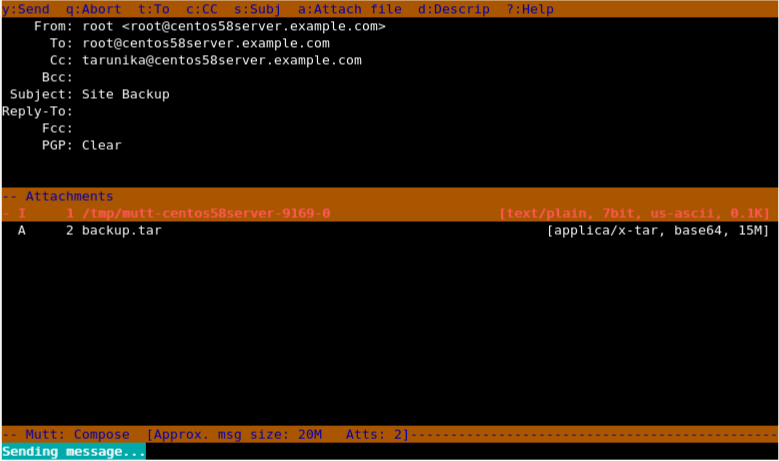
Send Email Attachment from Terminal
|
||
|
||
Here in above snapshot, you can see that it shows attachment attached with the mail.
|
||
|
||
##### Use of muttrc file
|
||
|
||
If we want to change the senders name and email, then we need to Create a file in that particular user’s home directory.
|
||
|
||
\[root@tecmint ~\]# cat .muttrc
|
||
|
||
Add the following lines to it. Save and close it.
|
||
|
||
set from = "user@domain.com"
|
||
set realname = "Realname of the user"
|
||
|
||
##### Getting Help
|
||
|
||
To print the help menu of “**mutt**”, we need to specify “**-h**” option with it.
|
||
|
||
\[root@tecmint ~\]# mutt -h
|
||
|
||
Mutt 1.4.2.2i (2006-07-14)
|
||
usage: mutt \[ -nRyzZ \] \[ -e <cmd> \] \[ -F <file> \] \[ -m <type> \] \[ -f <file> \]
|
||
mutt \[ -nx \] \[ -e <cmd> \] \[ -a <file> \] \[ -F <file> \] \[ -H <file> \]
|
||
mutt \[ -i <file> \] \[ -s <subj> \] \[ -b <addr> \] \[ -c <addr> \] <addr> \[ ... \]
|
||
mutt \[ -n \] \[ -e <cmd> \] \[ -F <file> \] -p -v\[v\]
|
||
options:
|
||
-a <file> attach a file to the message
|
||
-b <address> specify a blind carbon-copy (BCC) address
|
||
-c <address> specify a carbon-copy (CC) address
|
||
-e <command> specify a command to be executed after initialization
|
||
-f <file> specify which mailbox to read
|
||
-F <file> specify an alternate muttrc file
|
||
-H <file> specify a draft file to read header from
|
||
-i <file> specify a file which Mutt should include in the reply
|
||
-m <type> specify a default mailbox type
|
||
-n causes Mutt not to read the system Muttrc
|
||
-p recall a postponed message
|
||
-R mailbox in read-only mode
|
||
-s <subj> specify a subject (must be in quotes if it has spaces)
|
||
-v show version and compile-time definitions
|
||
-x simulate the mailx send mode
|
||
-y select a mailbox specified in your `mailboxes' list
|
||
-z exit immediately if there are no messages in the mailbox
|
||
-Z open the first folder with new message, exit immediately if none
|
||
-h this help message
|
||
|
||
This is it with **mutt command** for now, read **man pages** of mutt for more information on mutt command. |